IMAGE TOOL
Smart image pipeline in one run
When your cleanup recipe is fixed, run detection through upscale in one quote instead of opening six separate tools.
At a glance: Select one or more vision abilities for a single product photo; SKUVis runs the Aidge VisionFlow pipeline and returns one processed image after an 8-credit quoted run—inputs must have each edge greater than 256 px, long edge ≤1920 px, short edge ≤1080 px, and file size ≤5 MB.
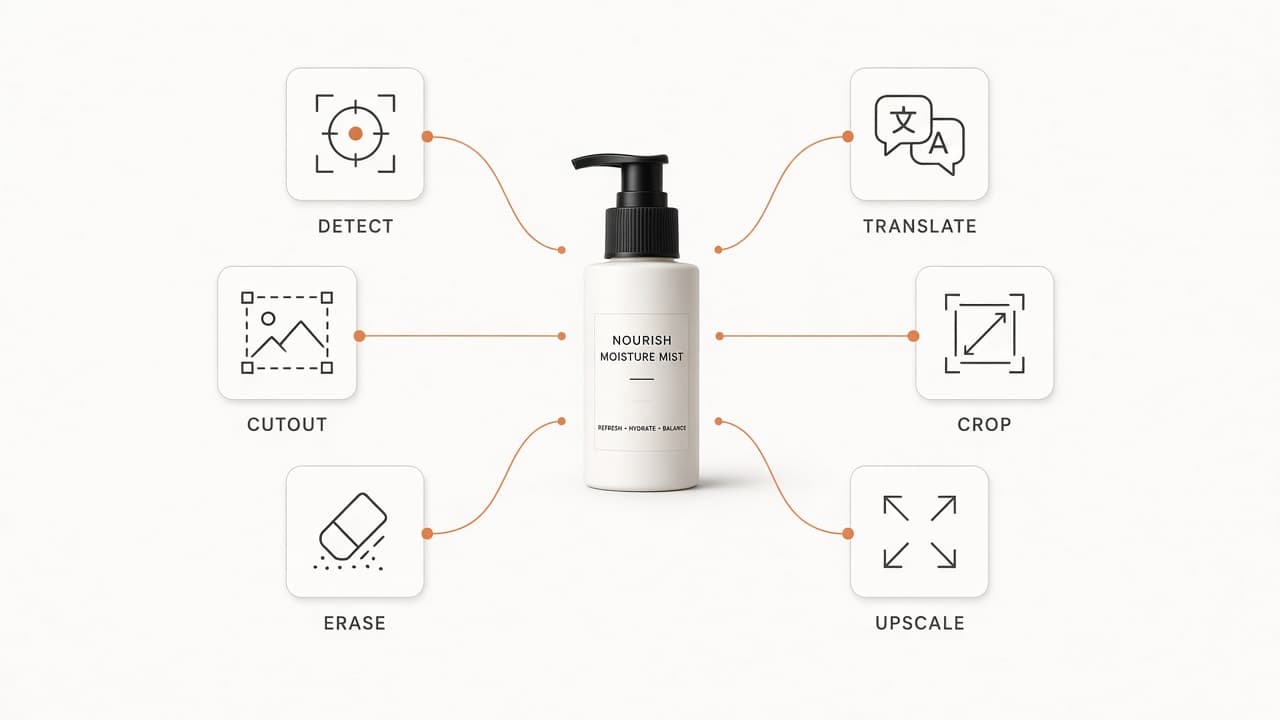
Abilities you can combine
Toggle any subset of six steps: find elements, cut out, erase, translate, crop, upscale—each selected ability must have its sub-options filled.
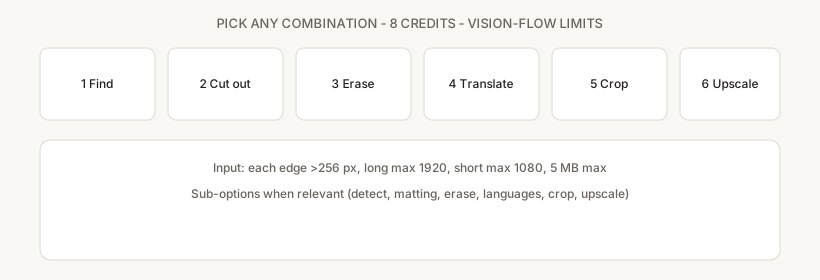
Abilities must be unique in one run. Translation requires an allowed language pair; erase requires elements or a mask when ability 3 is on.
- 1 Find elements — watermark, logo, text, text block (on product vs background)
- 2 Cut out — white or transparent matting, optional keep-matching filter
- 3 Erase — element types or painted mask
- 4 Translate — source/target language pair supported by smart-images list
- 5 Crop — default 800×800 target (editable 100–5000)
- 6 Upscale — factor 2–4
When to use smart images vs single tools
Use smart images for repeatable combo jobs under vision-flow limits; use standalone tools when you need to approve each step separately.
Limits are tighter than background removal (3000 px) because VisionFlow enforces the 1920×1080-class cap and 5 MB max.
How it works in SKUVis
Upload within vision-flow limits, configure abilities, confirm 8 credits, download one output from History.
- Upload a photo passing validateVisionFlowImage checks.
- Select abilities and fill conditional fields (detect types, matting mode, erase mask, languages, crop size, upscale factor).
- Review the 8-credit quote and submit.
- Inspect the single output before listing—retry with standalone tools if a stage needs manual QA.
There is no partial credit if you dislike one stage; split into separate tools for step-by-step control.
What it is not
Smart images is not product-images planning, virtual try-on, or video.
Failed pipeline runs follow the same credit release rules as other tools when applicable.
Inputs & outputs
What you provide
- One product image
- One or more abilities (1–6) with required sub-fields
What you get
- One processed image
- Each edge >256 px
- Long edge ≤1920 px, short edge ≤1080 px
- 5 MB max
- 8 credits on current preset—confirm in app
Common use cases
- Detect, erase promo text, mat white, crop square in one launch-day pass
- Translate and crop when dimensions fit vision-flow caps
FAQ
Why are limits tighter than background removal?
VisionFlow shares the 1920×1080-class and 5 MB constraints enforced before the provider call.
Can I see intermediate files?
No—only the final image. Use single-purpose tools for step-by-step previews.
If the pipeline fails, are credits returned?
Failed or canceled runs show as not charged in History when release rules apply.