
IMAGE TOOL
Smart erase for listing-ready photos
Remove supplier stickers, promo text, or stray overlays before matting or image translation—pick automatic detection or precise control.
At a glance: Upload a product photo on SKUVis smart erase, choose Automatic (Pro, async, 6 credits) or Targeted (Standard, 2 credits with type, text, box, brush, or reference removal), confirm the quote, and download the cleaned image from History—Pro accepts long edge ≤1920 px and short ≤1080 px (5 MB); Standard accepts 256–3000 px per edge (10 MB).
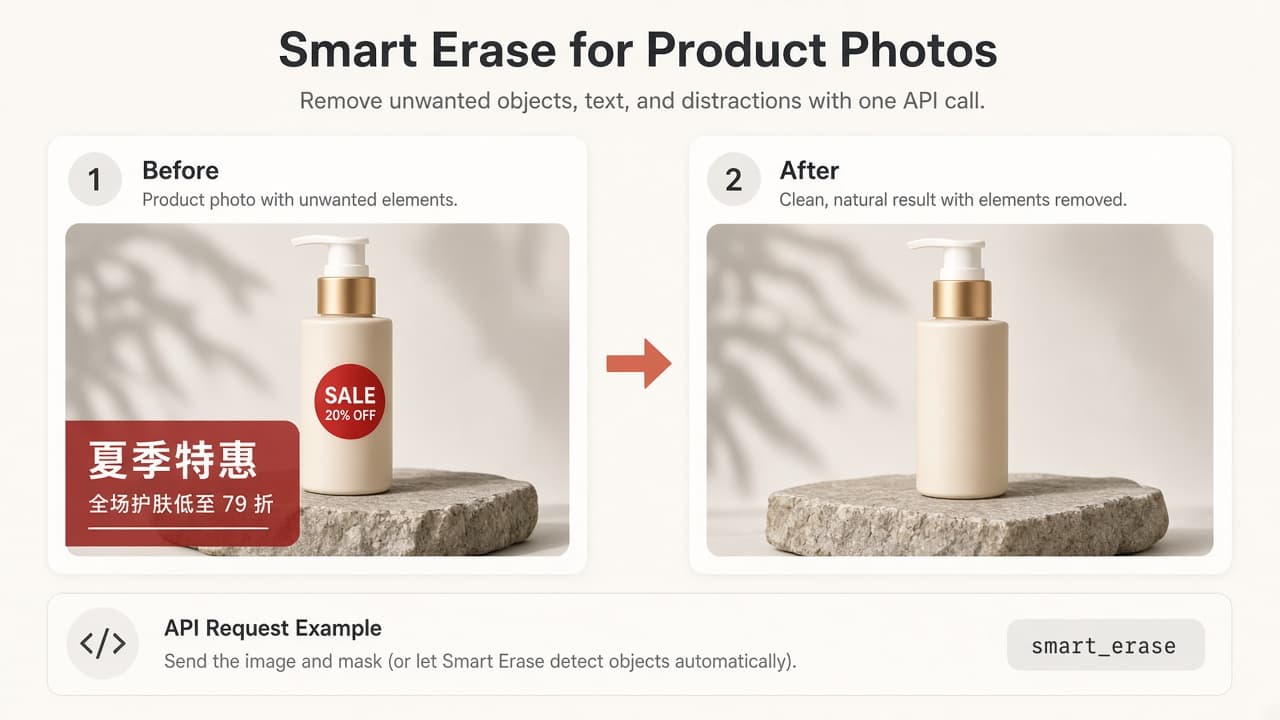
What smart erase does
Smart erase inpaints over unwanted regions on a product photo—promo badges, on-image text, or clutter—without replacing your entire shoot.
SKUVis wraps Aidge image removal APIs. You must have rights to edit the source; erasing third-party trademarks you do not own is not permitted.
Automatic vs targeted
Automatic (Pro) uploads one image and runs async full-image detection; Targeted (Standard) requires you to specify what to remove and costs fewer credits.
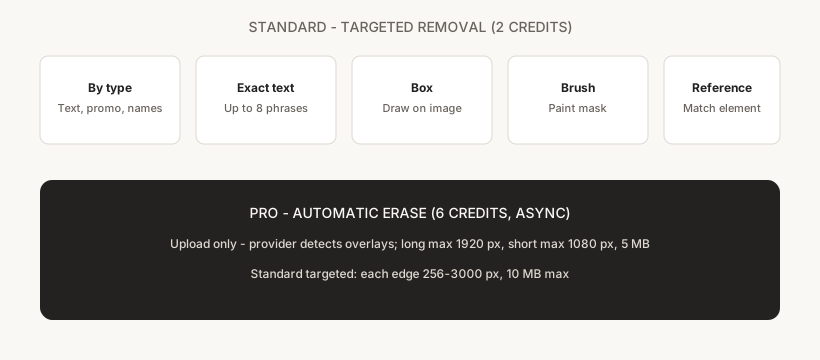
Switching edition re-validates your upload against the stricter Pro limits or the larger Standard canvas.
- Automatic (Pro): 6 credits · async · long edge ≤1920 px, short ≤1080 px, 5 MB max
- Targeted (Standard): 2 credits · sync-style run · 256–3000 px per edge, 10 MB max
Targeted removal methods (Standard)
Standard mode supports five ways to mark overlays: by element type, exact text phrases, a drawn box, a brushed mask, or a reference photo of the element.
Element types include transparent text blocks, specific names, general text, and promo overlays—you can scope types on the product vs background separately. Exact text accepts up to eight phrases; reference mode accepts up to four reference uploads.
- By type — toggle categories on product and background
- Exact text — comma or newline separated phrases (max 8)
- Box — draw a rectangle on the preview
- Brush — paint a removal mask on the preview
- Reference — upload photos of the element to match
How it works in SKUVis
Upload, choose Automatic or Targeted, set removal options (Standard only), confirm the quote, then open the job from History when processing finishes.
- Upload a product image (JPG, JPEG, PNG, BMP, or WebP) that passes edition-specific size checks.
- Choose Automatic (Pro) or Targeted (Standard).
- For Standard, pick a method and mark text, types, box, brush, or references as required.
- Review the credit quote (6 or 2 on current presets) and submit.
- Download the result from History—Pro runs stay async until status is ready.
After upload, dimension errors show your actual width, height, and file size before any credits are held.
What it is not
Erase is not copyright clearance, guaranteed perfect texture rebuild, or a substitute for licensed pack photography.
Heavy overlays on detailed surfaces may leave artifacts. Compare before/after every time before marketplace upload.
Inputs & outputs
What you provide
- One product image
- Edition: Automatic (Pro) or Targeted (Standard)
- Standard only: method + types, text list, box, mask, or reference images
What you get
- Cleaned product image in History
- Async task status for Pro runs
Formats: Downloadable raster image from your account
- Pro: long ≤1920 px, short ≤1080 px, each edge ≥256 px, 5 MB max
- Standard: 256–3000 px per edge, 10 MB max
- Quoted credits: 6 (Pro) or 2 (Standard) on current SKUVis presets—confirm in app
Common use cases
- Supplier photo cleanup before white-background main image
- Remove expired SALE stickers from reuse masters
- Prep packaging shots for image translation
- Clear promo text while keeping the product silhouette for smart crop
FAQ
What is the difference between Automatic and Targeted?
Automatic (Pro) sends only the image for async provider-side detection—6 credits, tighter 1920×1080-class limits. Targeted (Standard) requires you to specify removal via type, text, box, brush, or reference—2 credits, up to 3000 px per edge.
Why did Pro reject my 4K photo?
Pro requires long edge ≤1920 px and short edge ≤1080 px. Resize locally or use Targeted (Standard) for larger masters.
Why does Standard say “Mark what should be removed”?
You must complete the method you chose—select element types, enter text, draw a box, paint a mask, or add reference photos before submit.
Can erase remove the product itself?
It targets overlays and regions you specify (or provider detection on Pro). Always review output before publishing.
Is erasing supplier watermarks legal?
Only when your agreement with the supplier allows editing. SKUVis does not clear copyright.
If erase fails, do I lose credits?
Failed or canceled runs show as not charged in History when release rules apply.